

Published on November 4, 2024
Want to remove unwanted objects or people from a photo in Adobe Lightroom quickly and realistically? In this step-by-step tutorial, you’ll learn how to use Lightroom’s Remove tool with Generative AI to clean up distractions like background objects, strangers, or clutter in just a few clicks. This powerful feature automatically fills selected areas with realistic details, making it easier than ever to fix photos and remove distractions in Lightroom without Photoshop.
This guide walks you through the exact process to remove objects in Lightroom, choose the best variations, and refine the result so your photos look clean and distraction-free.
Rather watch the video with instructions? Then click here to watch the tutorial on YouTube or scroll down to the end of this page.
You can download the photo I used here.
Remove objects from photo with Generative AI
Open the photo you want to edit. Select remove and also make the mode remove.
Select ‘Generative AI‘.
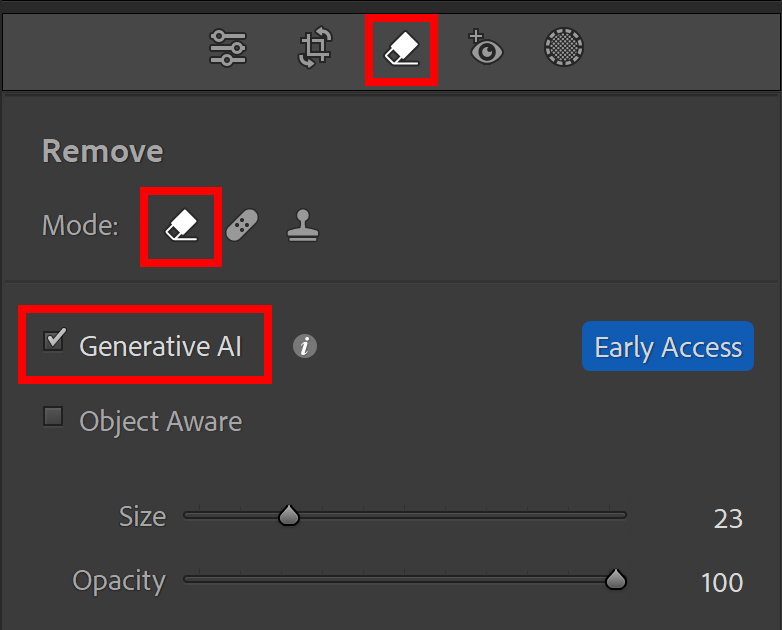
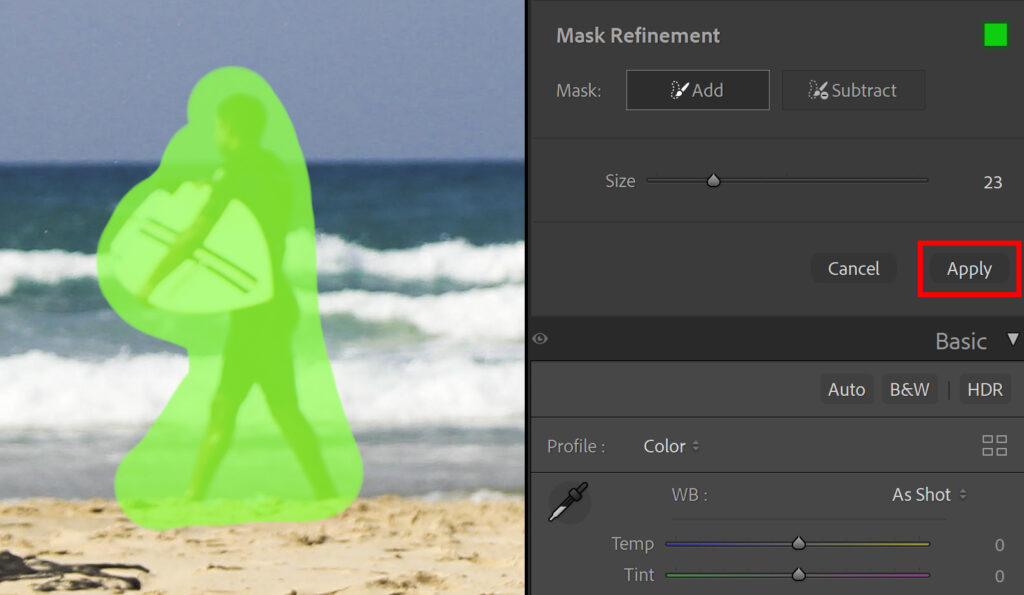
You can now select the object that you want to remove from your photo.
Then click ‘apply‘. Lightroom will now fill the selected area.
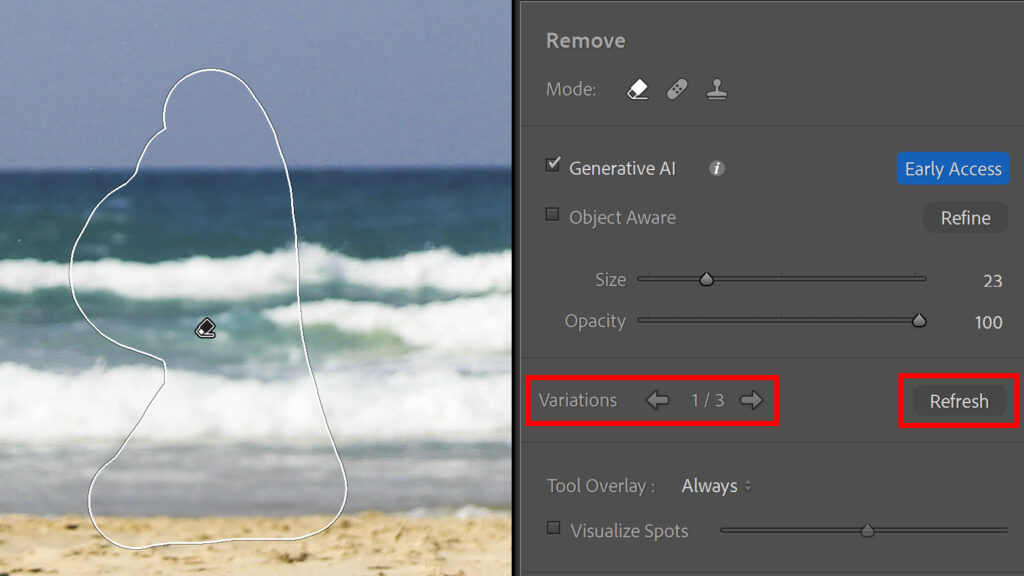
You now have 3 variations to choose from.
If you don’t like any of the variations, you can select ‘refresh‘ to generate 3 new variations. You can repeat this until you’re happy with the result.
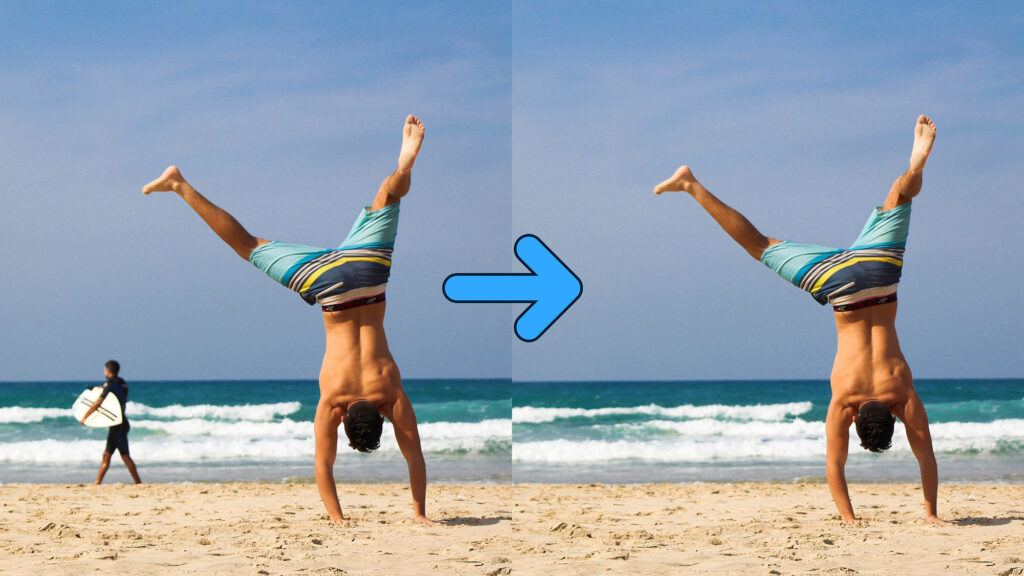
And that’s how you can easily remove unwanted objects or people from a photo using Generative AI in Adobe Lightroom.
Learn more about Adobe Lightroom
Want to learn more about editing in Adobe Lightroom? Check out my other blogs or take a look at my YouTube Channel.
You can also follow me on Facebook to stay updated about new blogs and tutorials!
Photoshop
Basics
Photo editing
Creative editing
Camera Raw
Neural filters
Text effects