

Published on December 18, 2025
Convert an image to outlines
In this article I will show you how to convert an illustration to outlines only in Adobe Photoshop.
Rather watch the video with instructions? Click here to watch the YouTube tutorial or scroll down to the end of this page.
This method only works if your illustration has black outlines. If you want, you can download the image I used here.
Step 1: Remove colors
Open the file that you want to use.
First unlock the background layer. You do this by clicking on the lock icon.
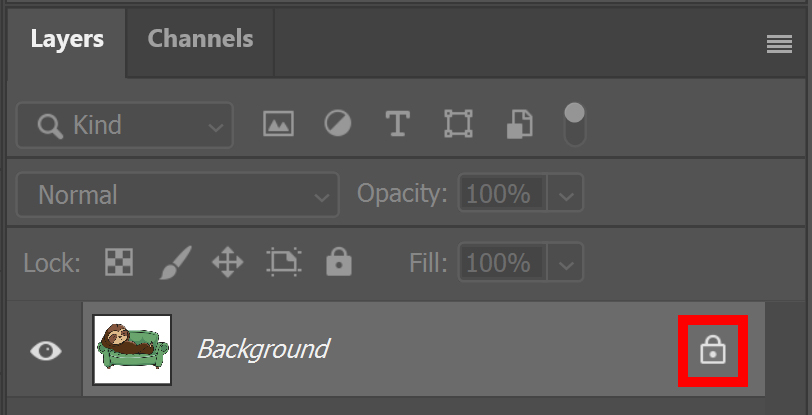
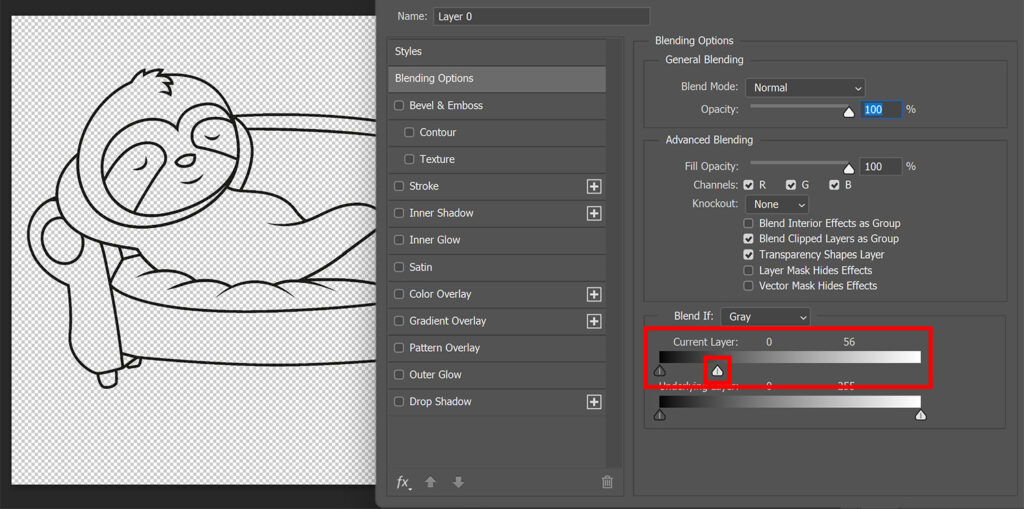
Then click on the Fx icon at the bottom of the layer panel and select ‘blending options‘.
Move the right slider under ‘current layer‘ to the left until all the colors are gone.
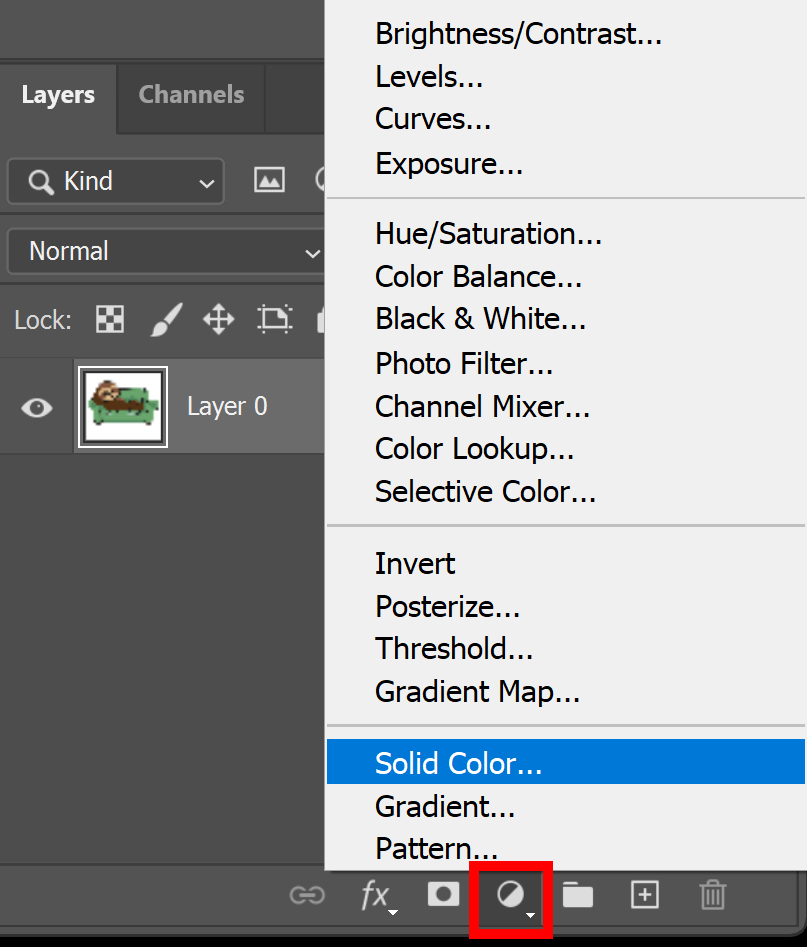
Add a solid color layer and make it white.
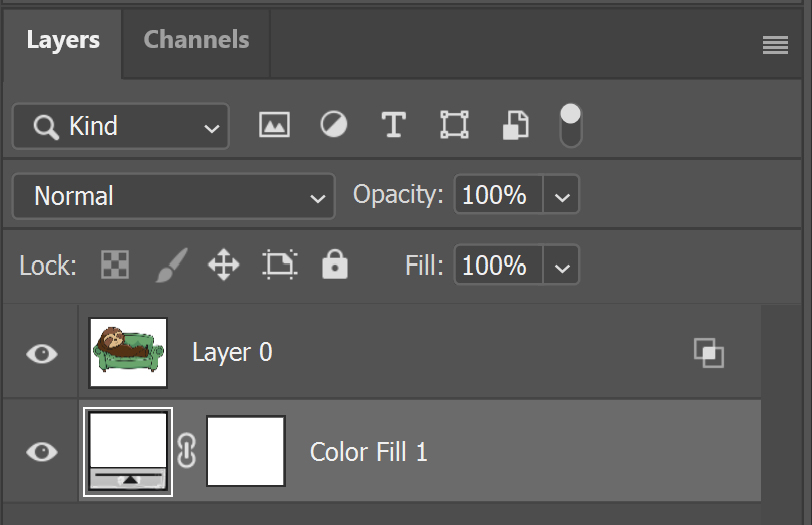
Place the Color Fill layer below the layer with the illustration. You should now have a white background and black outlines.
Step 2: Smoothen lines
If I zoom in now, you can see that the lines are not very smooth.

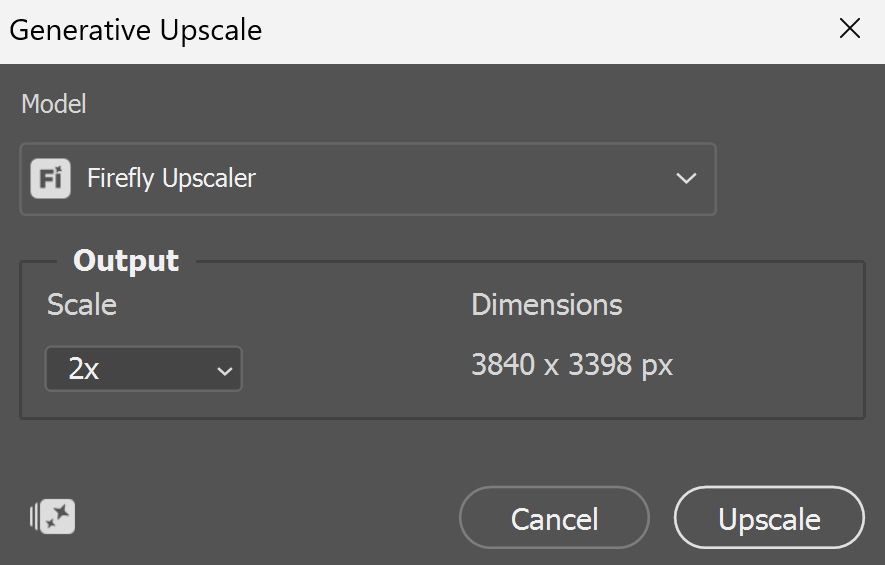
To smoothen the lines, I’ll use Generative Upscale.
Go to ‘Image > Generative Upscale‘. You can see the settings I used in the image below. Be aware that Generative Upscale consumes credits. The amount of used credits is based on the model and upscaled file output size.
The image below shows the result after upscaling the image. As you can see, the lines are a lot smoother now.

And that’s how you convert an image to outlines in Adobe Photoshop!
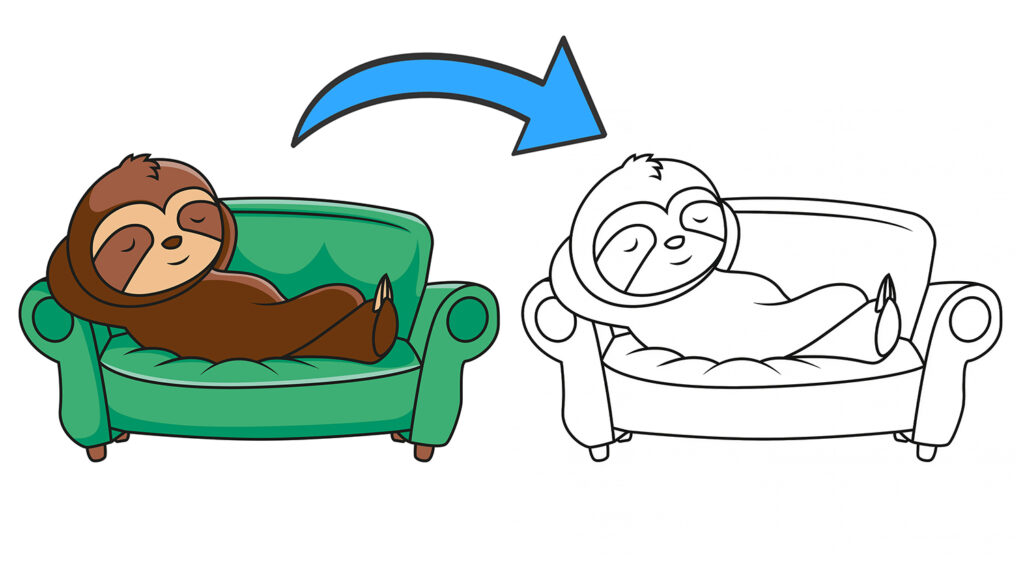
More methods to convert image to outlines
There are several methods you can use to convert an illustration to outlines. You can read more about it in these blogs:
- Use the filter gallery > Read this blog.
- Change the blending mode and use a levels layer > Read this blog.
- Use a threshold layer > Read this blog.
Learn more about editing in Adobe Photoshop
You can check out my other blogs and my YouTube channel if you want to learn more about editing in Adobe Photoshop!
Follow me on Facebook if you want to stay updated about new blogs and tutorials!
Photoshop
Basics
Photo editing
Creative editing
Camera Raw
Neural filters
Text effects