
Published on July 22, 2024
How to Extract Colors from an Image and Create a Color Palette in Photoshop
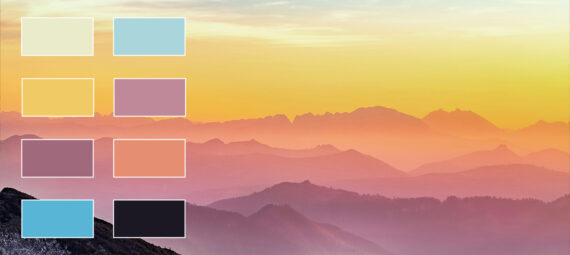
Want to create a color palette from a photo in Photoshop? In this easy step-by-step tutorial, you’ll learn how to extract colors from any image and turn them into reusable swatches using Adobe Photoshop.
This method is perfect for designers, photographers, and creatives who want to build custom color palettes from images for branding, web design, or digital artwork. By using Photoshop’s built-in tools, you can quickly generate a color palette from a photo and save it for future projects—no plugins required.
Rather watch the video with instructions? Then click here to open the tutorial on YouTube or scroll down to the end of this page.
If you want, you can download the photo that I used here.
Step 1: Save color palette
Open the file with the photo you want to use.
Then navigate to ‘File > Export > Save for web‘.
Select GIF and pick the amount of colors you want in the color palette. Then open the color palette menu and select ‘save color table‘.
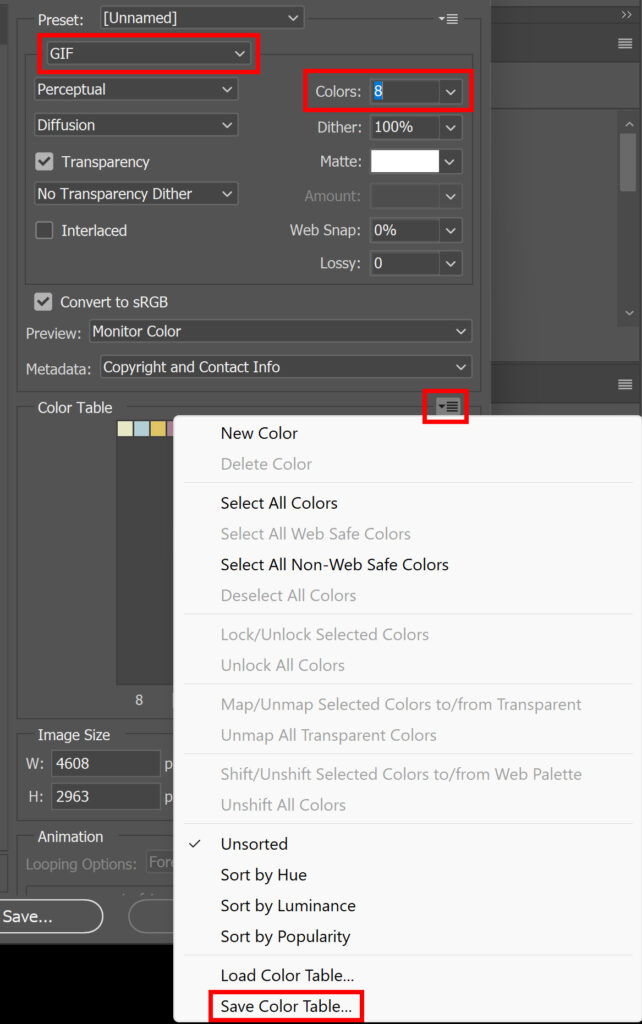
Save the color table. You can then close this window (by clicking on ‘cancel’).
Step 2: Import swatches
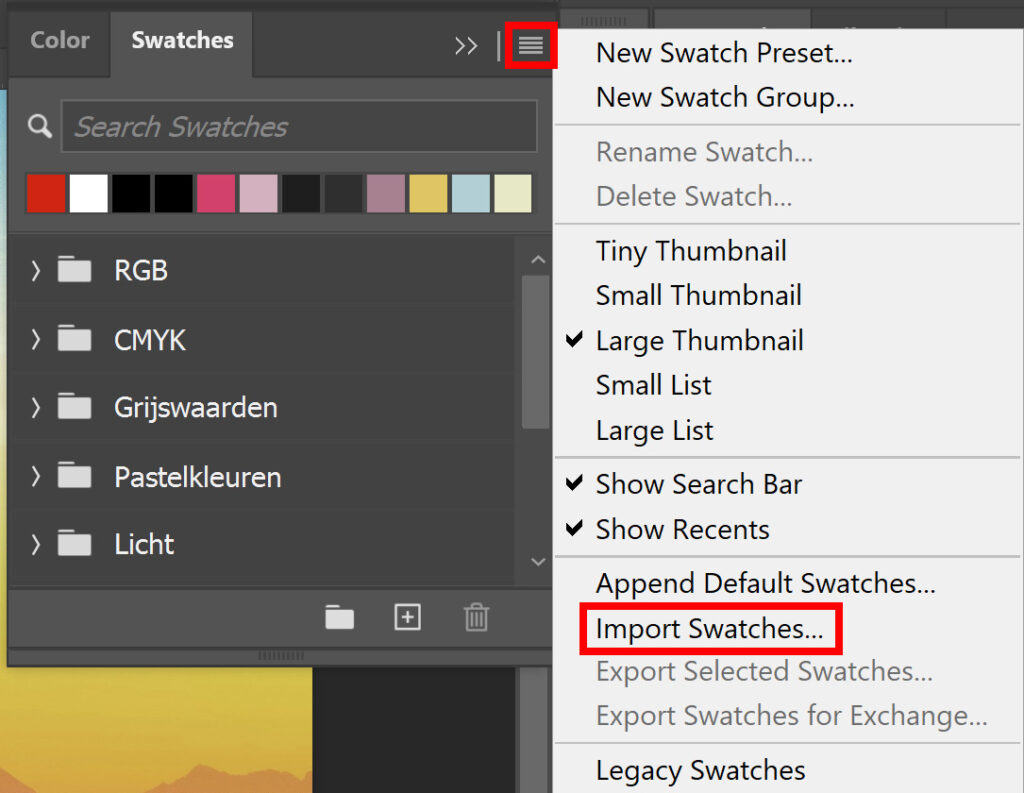
Select ‘window‘ in the top menu bar and select ‘swatches‘.
Click on the striped icon and select ‘import swatches‘.
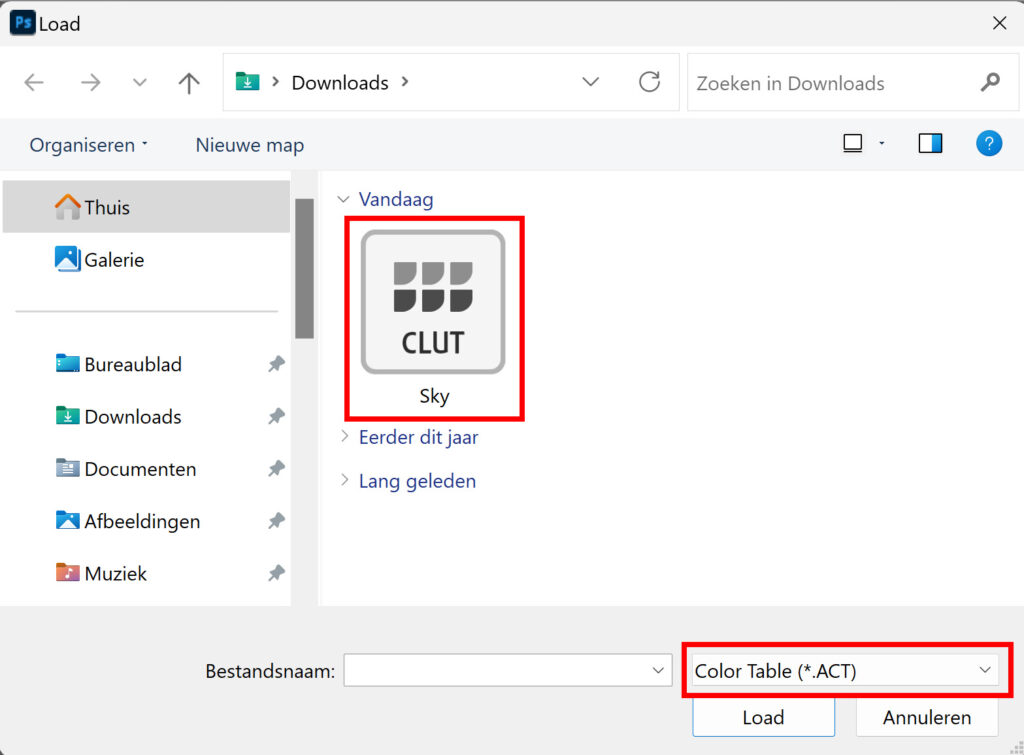
Select the color table you just saved (make sure you select Color Table *.ACT).
You can find your new color palette below the other folders. This color palette is now available to use for your next project!
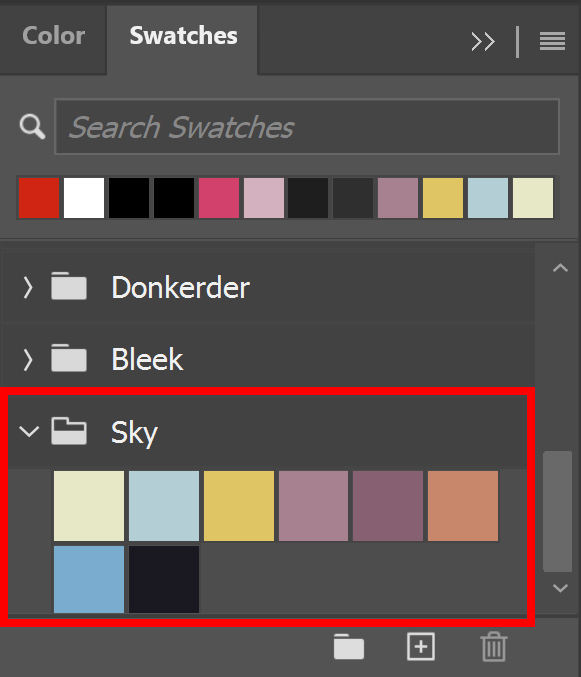
And that’s how you take swatches from a photo to create a color palette in Adobe Photoshop!
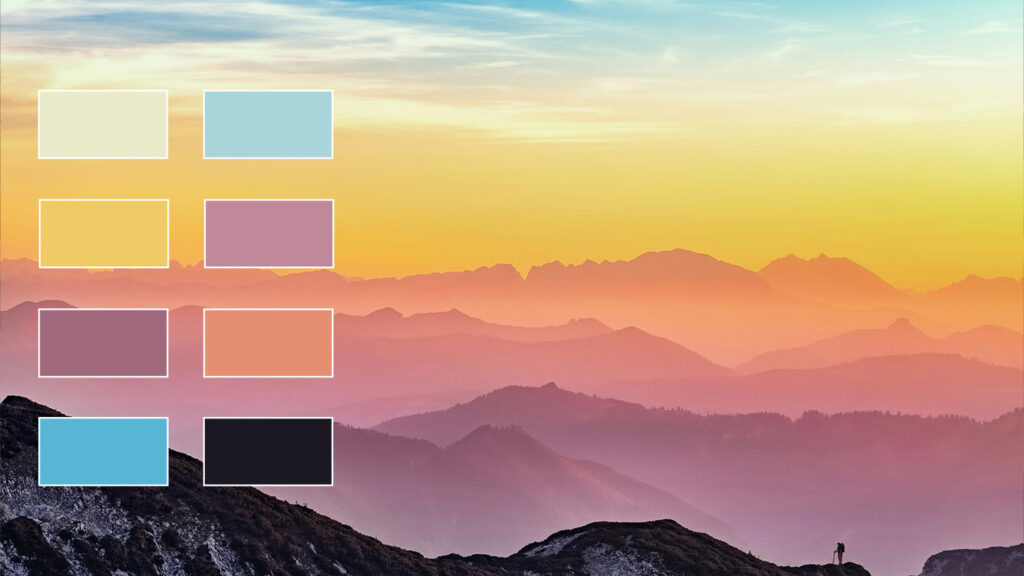
I now showed you one method to create a color palette, but there’s another way to create a color theme. You can read more about that in this article: Create color theme from photo
Learn more about Photoshop
Check out my other blogs and my YouTube channel if you want to learn more about editing in Adobe Photoshop!
Follow me on Facebook if you want to stay updated about new blogs and tutorials!
Photoshop
Basics
Photo editing
Creative editing
Camera Raw
Neural filters
Text effects