

Published on June 15, 2024
How to Create a Half Photo Half Text Effect in Photoshop (Step-by-Step Tutorial)
Want to create a half photo half text effect in Photoshop? In this step-by-step tutorial, you’ll learn how to place an image inside text and split it in half to create a bold, eye-catching design using Adobe Photoshop.
This image-in-text effect combines typography and photography, making it perfect for posters, social media graphics, and creative designs. By using simple tools like clipping masks and layer techniques, you can quickly create a split text effect in Photoshop.
Rather watch the video tutorial with instructions? Then click here to watch the tutorial on YouTube or scroll down to the end of this page.
If you want, you can download the photo I used here.
Step 1: Add text
First open the photo you want to use.
Then select the horizontal type tool. Pick a font and text color and type your text.
Select the move tool and press CTRL+T to activate free transform. Resize the text and place it in the center of the canvas.
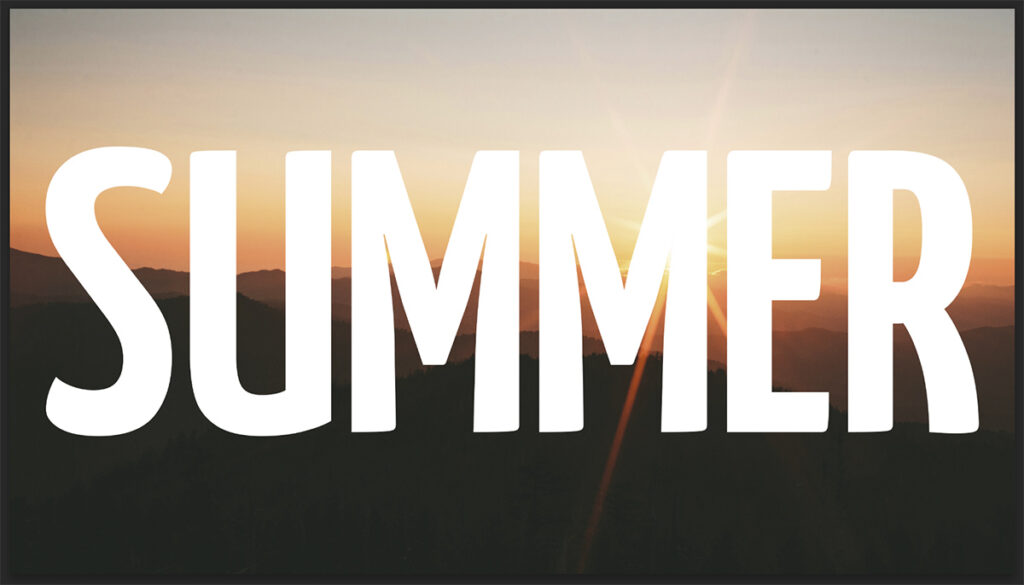
Step 2: Split text
Go to ‘View > Guides > New guide layout‘. Create 2 rows. Make sure the gutter is 0 pixels.
Select the background layer and unlock it (click on the lock icon). Then select the rectangular marquee tool and select half of the photo. I select the top half, but you can also select the bottom half (you’ll then get the same effect, but reversed).
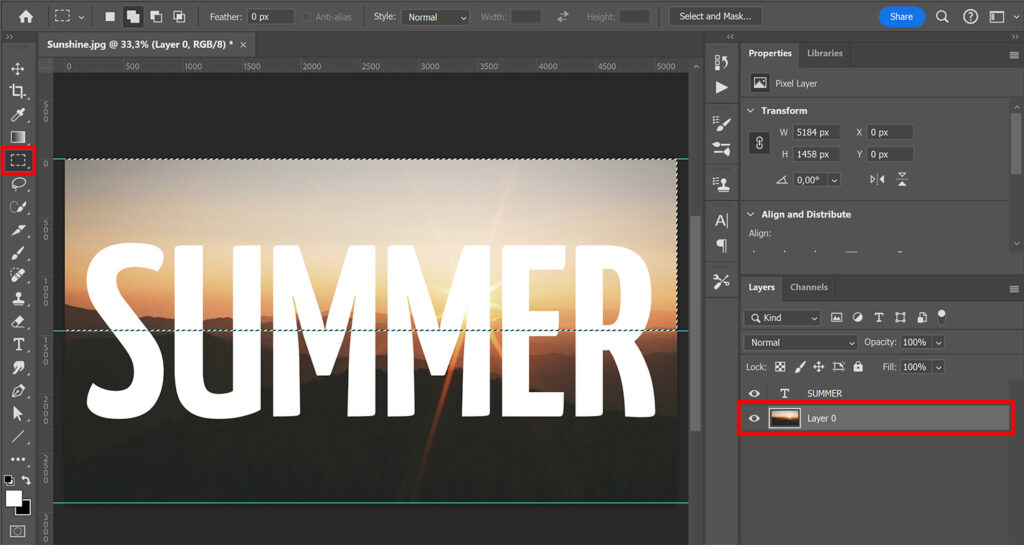
Press CTRL+SHIFT+J to cut the selected area in a new layer.
Then place this new layer above the text layer.
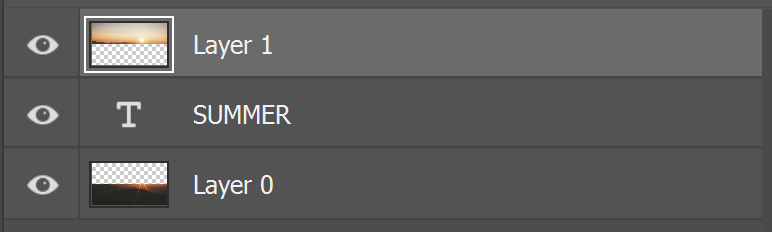
Right click on the top layer (layer 1) and select ‘create clipping mask‘.
Create a solid color layer. Make this layer the same color as the text (my text is white, so I make the solid color layer also white).
Then place the color fill layer below all the other layers.
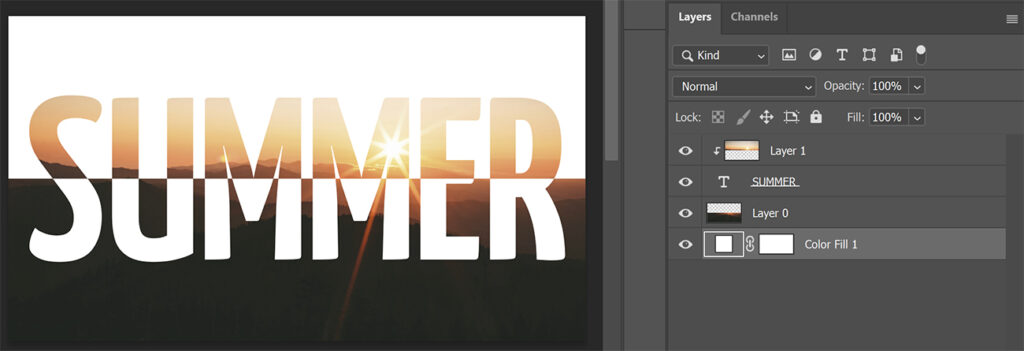
And that’s how you create this half photo – half text effect in Adobe Photoshop!

Learn more about editing in Photoshop
Check out my other blogs and my YouTube channel if you want to read or watch more Adobe Photoshop tutorials!
Follow me on Facebook if you want to stay updated about new blogs and tutorials!
Photoshop
Basics
Photo editing
Creative editing
Camera Raw
Neural filters
Text effects